Latest: Tutorials


Showing posts with label wordpress. Show all posts

Tuesday, 25 February 2014

How to add Paypal Donate button in WordPress and Blogger Blogs?

0 comments
My today's post will be based on how to add a paypal donate button in Wordpress and Blogger blogs?Though it helps adding this wonderful tool to blogs which am sure 10% of your visitors will surely be an handing help to you.

How to add Paypal Donate button in WordPress and Blogger Blogs?

PayPal Donate Button in WordPress 
I will be giving you two steps in adding a paypal donate button to your blog;


  1. Generation of HTML codes for PayPal Donate Button .
  2. Using the Generated HTML Code


  1. Generation of HTML codes for PayPal Donate Button .

  • Without Signing in to your PayPal Account- Click Here 
  • Click on “Create Your Button Now” Link. The screenshot for the same is shown below:
PayPal Donate Button in wordPress
  • After clicking on “Create Your Button Now” link as shown in above figure, you will be redirected to a new window. In Choose a button type drop down list, Choose “Donations” . For understanding it better, see the below given figure:
PayPal Donate Button
  • Fill all fields carefully. In Organization Name/ Service field, you can use any name. If you are a part of organization, use the same. As far as Donation ID field is concerned, you can leave it blank.
  • Scroll down the Page and choose whether you want a fix donation from users or want them to decide the amount, they want to donate.
  • You can also customize the look of your Donate Button by clicking on “Customize text or Appearance” link.
  • Once done, fill your PayPal Email Address and click on “Create Button“. Everything is clearly explained in the below given figure:
PayPal Donate Button

  • After clicking on “Create Button“, you will get HTML code for PayPal Donate Button. Just copy it because we will use the same code in WordPress and Blogger.
Paypal Donate Button

  • That’s it. We have got the code. Now, we will use the same in WordPress and Blogger.

2. How to add PayPal Donate Button in WordPress Blog?

  • Log into the Admin Dashboard of your WordPress Blog by visiting http://www.yourblog.com/wp-admin
  • In Dashboard, Navigate to Appearance>>Widgets. The screenshot for the same is shown below:
Widgets in wordPress
  • After clicking on “Widgets”, as shown in above figure, you will be redirected to the widgets page where you will see lots of Widgets. Choose “Text Widget“. For understanding it better, see the below given image:
Text Widget in WordPress
  • Now, Enter the Title of the widget and  Paste the HTML code of PayPal Donate Button , which was generated by you in the above shown step. The screenshot for the same is shown below:
Text Widget in WordPress

  • In the above shown figure, I have named the widget “Donate us“. Once done, click on “Save” button and enjoy.

2.How to add PayPal donate button in Blogger Blogs?

  • Log in to your Blogger Profile by visiting http://blogger.com
  • In Dashboard, Click on “Layout” option. You will find this option on the left hand side. Below given figure shows the same:
Layout Option in Blogger
  • Click on “Add gadget” option in your Blog’s Layout.The screenshot for the same is shown below:
Add a Gadget Option in Blogger
  • Now you will see a Pop-up box. Just scroll down until you find “ html/Javascript” option.If found click on it. The screenshot of the same is shown below.
HTML/Javascript option in blogger
  • Paste the HTML code of PayPal Donate button which was generated by you in step 1.  You can add a Title for your widget as well. I have added “Donate Us”. Below given figure shows the same:
PayPal Donate Us button

  • Once done, click on “Save” Button and enjoy.

If you have any query using these steps then let me know using the comment box below
Continue reading →

Wednesday, 19 February 2014

Unique Style Social & RSS Subscription Widget For Blogger

0 comments
social media widget
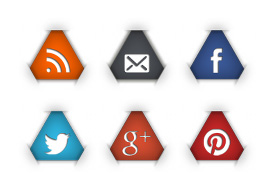
In today's tutorial i will be giving you unique style social and RSS subscription widget for your blog.This tutorial in meant for both blogger and wordpress user.So happy right? lets go to the tutorials now

Install Unique Subscription widget on Blogger?

Follow given steps to install this widget on blogger blogs: 
  • Go to Blogger Dashboard
  • Layout >> Add a Gadget >> Select HTML/JavaScript Gadget
  • Now copy below code and paste inside HTML/JavaScript Gadget
<!--Subscribe Follow Gadget starts-->
<center><a title="Grab Our Rss Feed" href="http://feeds.feedburner.com/noblenaijablog" target="_blank"><img border="0" src="https://blogger.googleusercontent.com/img/b/R29vZ2xl/AVvXsEhiNBY0XNSEdJjo1bno1nx2VPxfOAtZRnJ1CwhnxxQlFc8e7XEMNOx0VF88Q4BldPw9t7wcMYugRt_cQnV32AyFy5SMWVsJ5UCBHy82B5fifEbdyQ6EnzprDM9xnih7Of762i1DVvfcYMMy/s1600/RSS_78x75.png" style="margin-right:2px;" alt="Icon"/></a><a rel="nofollow" title="Get Free Updates Via Email" href="http://feedburner.google.com/fb/a/mailverify?uri=NOblenaijablog&amp;loc=en_US" target="_blank"><img border="0" src="https://blogger.googleusercontent.com/img/b/R29vZ2xl/AVvXsEjAGWF24UbRWY4sDA9xb10NX19vkpwMtvvBKO6IzwN-HywjGYgqaaj9ulhcOV9Nf3R5K8goN-lSSNBAYQRND0F-z_CWBbwqYlS3afHEqZ4lU3JlgHFRV8FsXOI-QXEaSYfs0XMbGxx1jMX8/s1600/Email_78x75.png" style="margin-right:2px;" alt="Icon"/></a><a rel="nofollow" title="Like Our Facebook Page" href="http://facebook.com/young bill 718" target="_blank"><img border="0" src="https://blogger.googleusercontent.com/img/b/R29vZ2xl/AVvXsEhf2NLwzjSp2SPe5NVTFOt4MZKBTVgXjh3KHzeey7Q6jw0UdChlkUvFY8i63Bf3KO1nYrcLGDvhUh45xVIV7-o4L_TLF8COXWQQQhZffJF1J9GzB9NsD_7VGUbT1BnunXsvFqE9rg8Yu8R4/s1600/Facebook_78x75.png" style="margin-right:2px;" alt="Icon"/></a><a rel="nofollow" title="Follow Our Updates On Twitter" href="http://twitter.com/oyejobiA" target="_blank"><img border="0" src="https://blogger.googleusercontent.com/img/b/R29vZ2xl/AVvXsEi7MmD3__7NyGC0_DUSDk3RwOHFvQfjOV2y1fR9YfiAg2YWaDWmRP9AYwLkApIygLDlcBBxetoynxSCE1Lcw60YYoTOUVcdCnJddsFTPMvDMH4Y1PuZx1BhAUJzRpuQO9lkJxTmuphMfYJE/s1600/Twitter_78x75.png" style="margin-right:2px;" alt="Icon"/></a><a title="Follow Us On Google+" rel="nofollow" href="https://plus.google.com/108628318516871549001" target="_blank"><img style="margin-right:2px;" src="https://blogger.googleusercontent.com/img/b/R29vZ2xl/AVvXsEhQ3WtJEYJtjq9PcdD4VJrgu9tKPhxQZv2OXOngNmSkCFRthMtqiW90yZuO_Kfd3Cph6KFeLEyW_TxLX-kbdt5JI5LnlOqkekdju3VKjP8jpiiEb7KEMZjI7ey4wZbJUwLNHwAPtShcYg4V/s1600/Google+_78x75.png"/></a><a title="Follow Our Pins" rel="nofollow" href="http://pinterest.com/oyejobia/" target="_blank"><img style="margin-right:2px;" src="https://blogger.googleusercontent.com/img/b/R29vZ2xl/AVvXsEjlUmmMEn9IjC1fkmnOToN0AuRi9Y5QLDA52fLy31ovzrKcLVD45uNCQnMTT_-lyRB2Zf8EpgTXraZ3TnHN5cSh3eKoGXzmI0O42qJHzIu6bjS5I4g26aL5SyHusUjBUJbKrXqlXpjKLXIL/s1600/Pinterest_78x75.png" alt="Follow Me on Pinterest" /></a></center>
<!--Subscribe Follow Gadget Ends-->
4. Save you the widget and view your blog to see a very unique and stylish social subscription widget along with RSS subscription button.

How to Install This widget on WordPress? 

Installing this widget on WordPress blogs is also very easy, and shouldn't take more than 5 minutes, follow these steps to install this widget on WordPress do following: 
  • Go to WP Dashboard
  • Appearance >> Widgets
  • Select a Text Widget 
  • And Paste the above provided code inside text widget
  • Save the widget and view your blog 

Customization: 
What you need to customize in this widget is; just replace the Blue Highlighted links with your own links, because these all are my social profiles links, so you can easily replace them with yours.


Continue reading →
Blogger Widgets
 

Contact Form

Name

Email *

Message *

Jquery Dropdown Menu

Author's Bio

Founder & Author: Oyejobi Adeola is a blog designer, web developer and a loving person currently working on several web projects, he is managing several blogs from his living.He loves to help and teaches different people on how they can make it big online without age barrier.Do you really love his blog? If yes, then
Read More About Him

Recipes

Related Posts Plugin for WordPress, Blogger...
Copyright © 2013 Noblenaijablog All Right Reserved
Designed by oyejobiA | Powered by Blogger